by iamrolanddiaz | Feb 20, 2026 | Principeng Hari
Introduction
Google Tag Manager (GTM) is commonly used in digital marketing to manage tracking codes without directly editing website source files. Many businesses use tag management systems to streamline analytics deployment, improve workflow efficiency, and reduce reliance on repeated developer updates. Implementation approaches and results may vary depending on website structure, platform rules, and measurement strategy.
Developed by Google, Google Tag Manager continues evolving alongside privacy updates, browser restrictions, and platform measurement standards in 2026. Beginners often use GTM to organize analytics tags, marketing pixels, and event tracking in a structured and scalable way.
What Is Google Tag Manager?
Google Tag Manager is a tag management system (TMS) that allows users to deploy and manage tracking scripts (called tags) through a centralized interface. Instead of adding multiple code snippets manually across pages, GTM enables structured tag deployment using triggers and variables.
In many implementations, GTM acts as a bridge between websites and measurement tools, helping marketers organize:
Actual measurement accuracy depends on correct configuration and ongoing validation.
Why Google Tag Manager Matters in 2026
Modern digital marketing increasingly relies on event-based tracking and privacy-aware data collection. Changes in browser policies and platform rules have encouraged marketers to use more structured measurement frameworks.
Common reasons GTM is used include:
-
Centralized tracking management
-
Reduced need for repeated code changes
-
Easier testing environments
-
Better alignment with event-driven analytics models
Requirements and best practices may differ across regions due to data privacy regulations and consent requirements.
Core Components of Google Tag Manager
Understanding the three core building blocks helps beginners implement GTM more effectively.
1. Tags
Tags are snippets of code used to send data to analytics or advertising platforms.
Examples may include:
Performance outcomes depend on correct trigger conditions and validation.
2. Triggers
Triggers define when a tag should fire.
Common trigger examples include:
-
Page views
-
Button clicks
-
Form submissions
-
Scroll depth tracking
Trigger accuracy varies based on website structure and user interaction patterns.
3. Variables
Variables store dynamic values used by tags and triggers.
Examples include:
-
Page URLs
-
Click text
-
Form IDs
-
Custom data layer values
Variables help make measurement setups more flexible and scalable.
Basic Google Tag Manager Setup (Beginner Workflow)
While implementation details vary by platform, a simplified workflow often includes:
-
Create a GTM account and container
-
Install the container snippet on your website
-
Configure a basic analytics tag
-
Set a page-view trigger
-
Use preview mode for validation
-
Publish the container after testing
Testing is commonly recommended to reduce tracking inconsistencies.
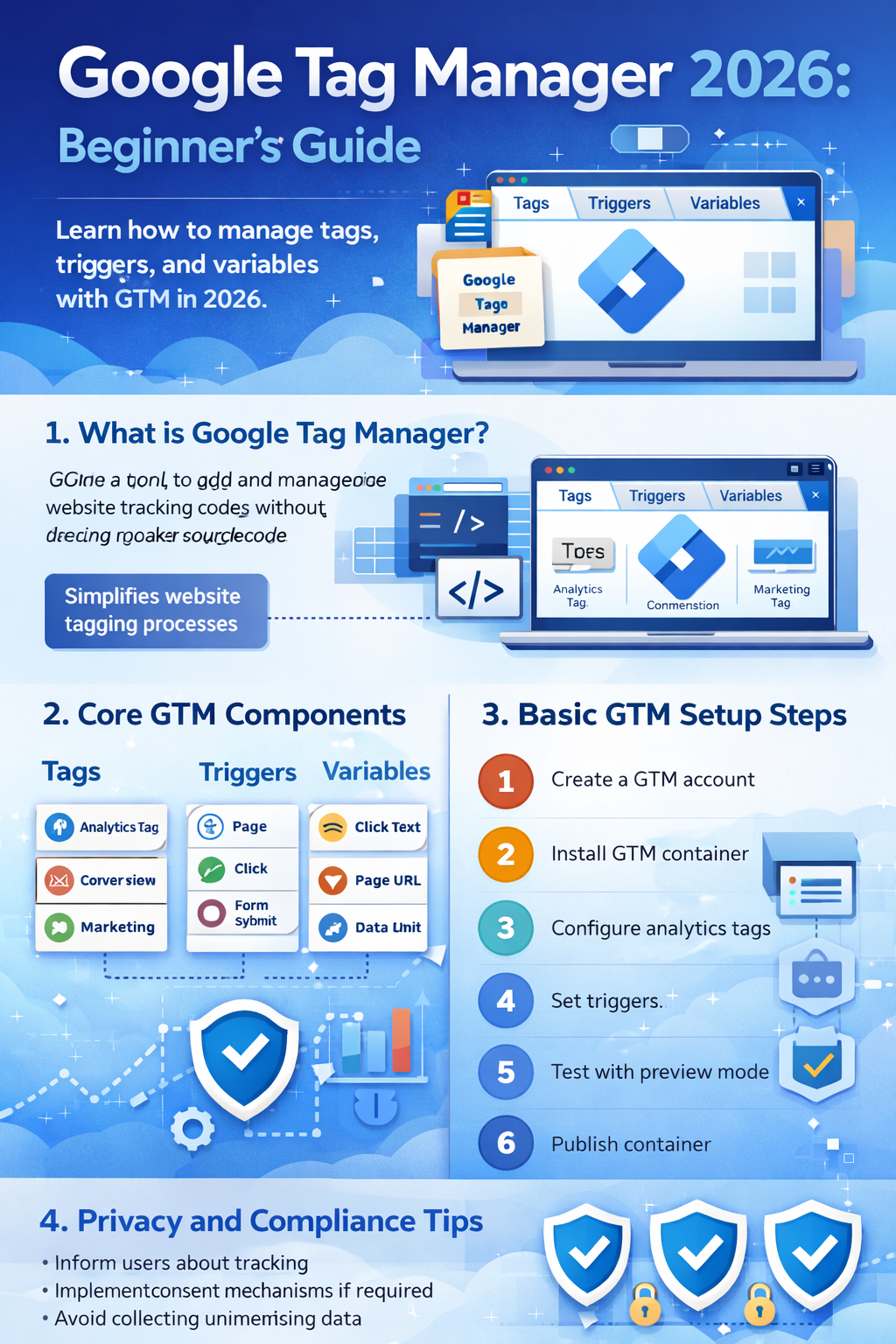
Overview infographic of Google Tag Manager 2026 features and setup workflow.
Understanding the Data Layer (Beginner Concept)
The data layer is a structured method used to pass information from a website into GTM. It helps organize event data more reliably compared to relying only on page elements.
Examples of data layer usage may include:
Implementation approaches often depend on website frameworks and developer collaboration.
Privacy and Compliance Considerations
Tracking implementation should follow transparent data practices and applicable privacy standards.
In many regions, commonly recommended practices include:
-
Informing users about tracking technologies
-
Implementing consent mechanisms where required
-
Avoiding unnecessary data collection
-
Reviewing platform policies regularly
Privacy requirements differ by jurisdiction and platform.
Platforms Commonly Integrated with Google Tag Manager
Google Tag Manager is often used alongside analytics and advertising ecosystems, depending on campaign strategy.
Common integrations may include:
Examples of platforms businesses frequently connect include:
-
Meta Platforms advertising tools
-
TikTok advertising measurement
-
YouTube engagement tracking
Implementation methods vary depending on platform requirements.
Beginner Mistakes to Avoid
Some common setup issues include:
-
Publishing containers without testing
-
Tracking duplicate events
-
Missing trigger conditions
-
Not documenting tag configurations
-
Ignoring consent requirements
Regular audits are often recommended to maintain tracking accuracy.
Practical Beginner Checklist
Google Tag Manager Starter Checklist
-
Install GTM container correctly
-
Use preview mode before publishing
-
Document tags and triggers
-
Validate event tracking
-
Review privacy and consent setup
-
Monitor analytics after deployment
Measurement reliability depends on ongoing testing and updates.
FAQ
Is Google Tag Manager difficult for beginners?
Google Tag Manager has a learning curve due to its event-based structure. With structured tutorials and practice, many beginners gradually become comfortable with basic configurations.
Does Google Tag Manager replace analytics tools?
Google Tag Manager does not replace analytics platforms. It is commonly used to deploy and manage tracking tags that send data to analytics systems.
Do I need coding skills to use Google Tag Manager?
Basic setups often require minimal coding, but more advanced implementations may involve developer collaboration depending on website complexity.
Trusted Sources & Standards
-
Google Search Central documentation
-
Google Analytics Help Center
-
Meta Business Help Center
-
TikTok Business Help Center
-
Global consumer protection and privacy guidance (general educational reference)
Summary
Google Tag Manager is a tag management system widely used to organize website tracking without editing source code repeatedly. Beginners typically learn how tags, triggers, and variables work together to manage analytics and marketing measurement. Implementation practices vary depending on platform rules, privacy requirements, and website structure, and results depend on correct configuration and ongoing testing.
Disclaimer
This content is provided for general educational purposes only. Digital marketing results vary depending on market conditions, platform rules, audience behavior, and execution.

by iamrolanddiaz | Feb 19, 2026 | Principeng Hari
Content Outline
- What Is GTM Consent Mode?
- Why Consent Mode Matters in 2026
- Consent Mode vs Cookie Banner: What’s the Difference?
- Consent Types Explained (ad_storage, analytics_storage, etc.)
- How GTM Consent Mode Works (Beginner Explanation)
- Step-by-Step Setup in Google Tag Manager
- Step 1 — Prepare Your Tracking Stack
- Step 2 — Configure Default Consent
- Step 3 — Set Consent Updates (After User Choice)
- Step 4 — Test Consent Mode Properly
- Recommended Default Consent Settings (Examples)
- Integrating Consent Mode with Cookie Banners (CMPs)
- Common GTM Consent Mode Mistakes to Avoid
- Best Practices for GA4 + Google Ads + Consent Mode
- Consent Mode Reporting Expectations (What Changes?)
- Practical Checklist
- FAQ
What Is GTM Consent Mode?
Google Tag Manager (GTM) Consent Mode is a privacy-focused setup that helps websites adjust how Google tags behave based on a visitor’s consent choices. Instead of firing tracking cookies immediately, GTM can send “consent signals” that indicate whether the user allowed analytics or advertising tracking.
Consent Mode is commonly used to align tracking with privacy expectations and data protection standards in many regions.
Why Consent Mode Matters in 2026
In 2026, digital marketing teams face increasing pressure to balance performance tracking with privacy compliance. Many regions have stricter expectations for how businesses handle cookies, remarketing, and behavioral tracking.
Consent Mode helps because it:
-
supports consent-based tag behavior
-
improves transparency and user trust
-
reduces risk of non-compliant tracking configurations
-
allows limited modeling signals (depending on platform behavior and setup)
This does not replace legal compliance, but it can support a more privacy-aware implementation.
Consent Mode vs Cookie Banner: What’s the Difference?
A common beginner misunderstanding is assuming Consent Mode is the same as a cookie banner.
Cookie Banner (CMP)
A cookie banner is the front-end interface that:
Consent Mode
Consent Mode is the back-end logic that:
-
tells Google tags what they are allowed to do
-
adjusts cookies and tracking behavior
-
ensures tags respond properly to consent status
In simple terms:
Cookie banners collect consent. Consent Mode enforces it inside tracking systems.
Consent Types Explained
Google Consent Mode uses multiple consent categories. The most common ones include:
| Consent Type |
What It Controls |
Typical Use |
| ad_storage |
Advertising cookies |
Google Ads remarketing |
| analytics_storage |
Analytics cookies |
GA4 session tracking |
| ad_user_data |
Ad-related user data |
Enhanced conversions logic |
| ad_personalization |
Personalization signals |
remarketing customization |
| functionality_storage |
site functionality cookies |
language preferences |
| security_storage |
security cookies |
fraud prevention |
Not all websites need every consent type. Many beginner setups focus on analytics_storage and ad_storage first.
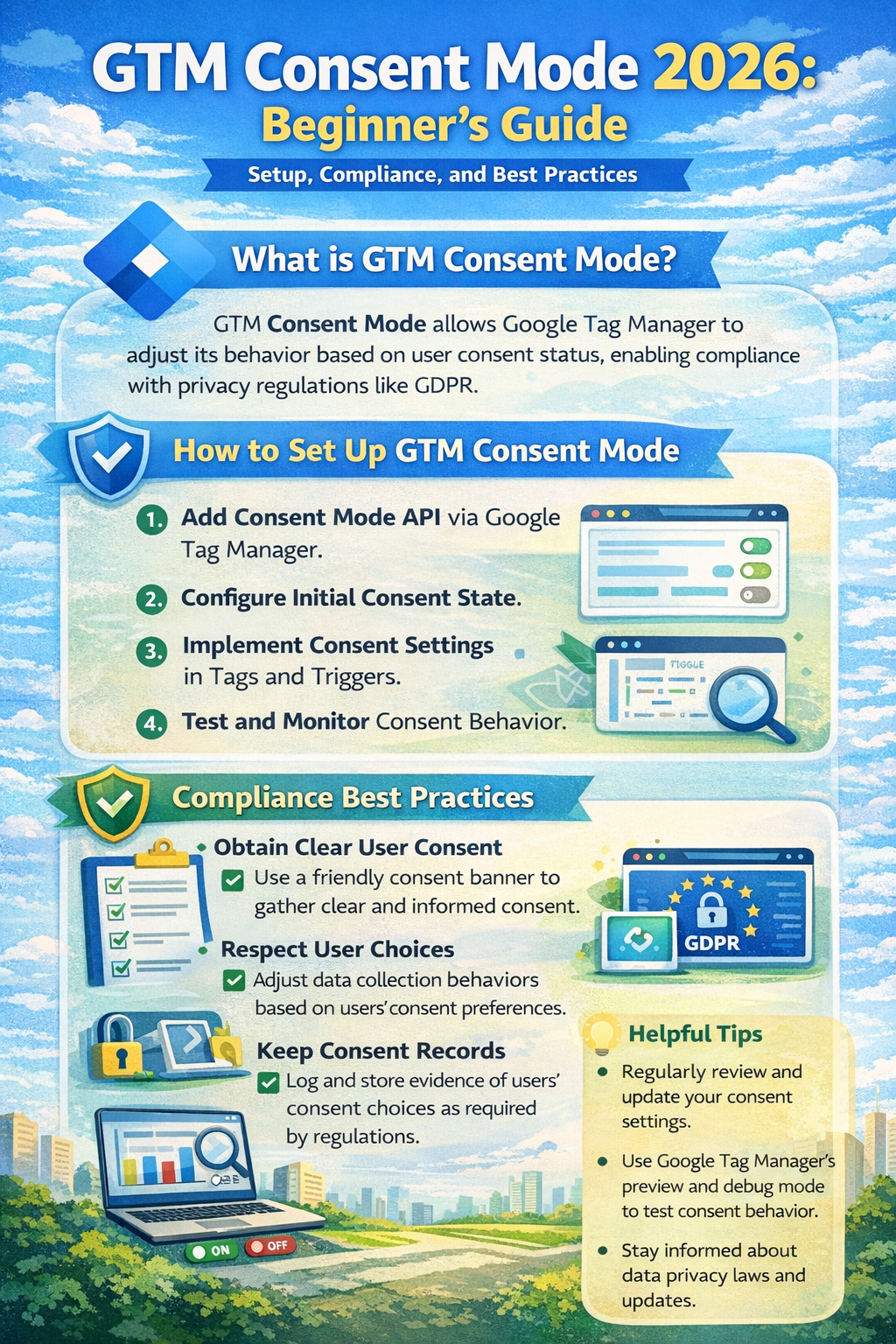
Structured visual summary of GTM Consent Mode 2026 configuration layers and consent state framework.
How GTM Consent Mode Works
Consent Mode works by setting rules such as:
-
If user consent is denied, tags may still load but behave in a limited way.
-
If user consent is granted, tags can store cookies and track normally.
In practice, this means:
This approach is often used to avoid firing full tracking cookies before consent is captured.
Step-by-Step Setup in Google Tag Manager
Step 1 — Prepare Your Tracking Stack
Before setting up Consent Mode, confirm:
-
your GTM container is installed correctly
-
GA4 configuration tag (or GA4 event tags) are present
-
Google Ads conversion tags are properly configured
-
you have a cookie banner or CMP available
Even a simple cookie banner can work if it can trigger consent updates.
Step 2 — Configure Default Consent in GTM
Default consent defines what happens before the user makes a choice.
Recommended beginner approach:
In GTM:
- Go to Tags
- Create a new tag
- Select Consent Initialization – Google Tag
- Configure default consent states
Example default settings:
This ensures tracking cookies are not stored before permission is granted.
Step 3 — Set Consent Updates After User Choice
Once the user accepts or rejects cookies, your cookie banner should trigger an event.
In GTM, create a tag that runs on the consent action event:
-
“Accept All Cookies”
-
“Accept Analytics”
-
“Reject All”
-
“Save Preferences”
Then use the Consent Update command to set values like:
If a user rejects ads but accepts analytics:
This gives more granular control and is considered a best practice in many compliance-focused setups.
Step 4 — Test Consent Mode Properly
Testing is essential because many consent setups appear correct but still fire cookies too early.
Recommended testing methods:
What to verify:
-
cookies do not appear before consent
-
tags behave differently depending on consent
-
consent update triggers are firing correctly
Recommended Default Consent Settings
Privacy-First Default (Recommended for many regions)
Analytics-Friendly Default (More aggressive, not always recommended)
This approach may not be appropriate in many jurisdictions unless analytics cookies are considered essential, which is not always the case.
Integrating Consent Mode with Cookie Banners
A Consent Management Platform (CMP) is usually the easiest way to implement Consent Mode correctly.
A CMP typically provides:
-
built-in cookie scanning
-
preference center UI
-
consent logs
-
triggers for GTM
Common integration flow:
- User lands on site
- Default consent = denied
- CMP banner displays
- User selects preferences
- CMP pushes consent status into GTM
- GTM updates consent mode states
- GA4 and Ads tags adjust accordingly
When using a CMP, confirm it supports:
Common GTM Consent Mode Mistakes to Avoid
❌ Setting consent tags to fire too late
Consent initialization must run early. Otherwise cookies may fire before consent.
❌ Forgetting to update consent after user action
If you set default denied but never update, you may lose analytics visibility entirely.
❌ Allowing tags to fire without consent checks
Some tags (especially custom HTML tags) can bypass consent controls unless configured properly.
❌ Not documenting consent categories
You should clearly map cookie categories to:
-
analytics
-
ads
-
functionality
This improves transparency and makes audits easier.
❌ Assuming Consent Mode is “legal compliance”
Consent Mode is a technical solution, not a legal certification.
Best Practices for GA4 + Google Ads + Consent Mode
Best practice checklist:
-
Implement default denied for analytics and ads unless justified
-
Use granular consent options (not only “accept all”)
-
Separate GA4 events from conversion tags for better control
-
Use server-side tagging carefully (still requires consent logic)
-
Maintain clear cookie and privacy policies
For Google Ads:
Consent Mode Reporting Expectations
Consent Mode may affect reporting and attribution because fewer cookies are stored when users deny consent.
In many setups, you may observe:
-
reduced remarketing audience size
-
fewer attributed conversions
-
more reliance on modeled data (depending on platform behavior)
However, Consent Mode can still support measurement continuity in a more privacy-respecting way.
Actual reporting outcomes vary based on:
-
traffic volume
-
consent rate
-
regional rules
-
tag setup quality
Practical Checklist
✅ GTM installed correctly
✅ GA4 tag configured
✅ Google Ads conversion tag configured (if needed)
✅ Consent Initialization tag created
✅ Default consent states set to denied
✅ Cookie banner connected to GTM
✅ Consent update triggers created
✅ Consent categories mapped properly
✅ Testing done in Preview + browser cookies
✅ Privacy policy and cookie notice updated
✅ Documentation saved for audit readiness
FAQ
What is the difference between Consent Mode v2 and older Consent Mode?
Consent Mode v2 expands consent signals and aligns better with modern advertising privacy requirements, especially for Google Ads-related data signals.
Do I still need a cookie banner if I use GTM Consent Mode?
Yes. Consent Mode controls tag behavior, but a cookie banner or CMP is typically required to collect user preferences.
Will Consent Mode reduce my GA4 traffic?
It may reduce tracked sessions and events if users deny analytics consent. Reporting impact depends on consent rates and implementation.
Is GTM Consent Mode required for all websites?
Not always, but it is widely recommended for websites using Google tags in regions where consent-based tracking is expected.
Can I use Consent Mode with non-Google tags?
Yes, but you may need additional GTM consent checks and tag-level controls to prevent third-party cookies from firing without consent.
Trusted Sources / Standards
-
Google Tag Manager Documentation (Consent Mode and consent settings)
-
Google Analytics (GA4) Documentation
-
Google Ads Help Center (conversion tracking policies)
-
GDPR-style transparency and consent principles (general reference)
-
Data privacy best practices aligned with global consumer protection expectations
Disclaimer
This content is provided for general educational purposes only. Digital marketing results vary depending on market conditions, platform rules, audience behavior, and execution. Consent requirements may differ by jurisdiction, so businesses should review applicable privacy laws and platform policies.
Summary
GTM Consent Mode in 2026 helps websites adjust Google tag behavior based on user consent preferences. It works alongside a cookie banner by setting default consent states and updating them after a visitor accepts or rejects tracking. A proper setup improves privacy alignment, reduces compliance risk, and supports more responsible analytics and advertising measurement depending on platform capabilities.