Google Search Console 2026: Beginner’s Guide
What Is Google Search Console (GSC)?
Google Search Console (GSC) is a free tool from Google that helps website owners understand how their site appears in Google Search. It provides reporting and diagnostic insights such as which queries bring traffic, which pages are indexed, and whether Google encounters technical issues while crawling your website.
Unlike analytics platforms that track user behavior after visitors arrive, Search Console focuses on what happens before the click—how Google finds, understands, and ranks your content.
Why Google Search Console Matters for SEO in 2026
In 2026, SEO continues to evolve with AI-powered search experiences, rich results, and increasingly competitive content ecosystems. Google Search Console remains one of the most reliable tools for monitoring visibility because it uses data directly from Google Search systems.
Google Search Console is commonly used to:
-
monitor keyword visibility and organic clicks
-
identify technical indexing issues early
-
understand which pages Google is prioritizing
-
track performance changes after website updates
-
validate SEO improvements over time
While it does not provide every ranking factor or full keyword lists, it is still one of the strongest “source of truth” tools for organic search monitoring.
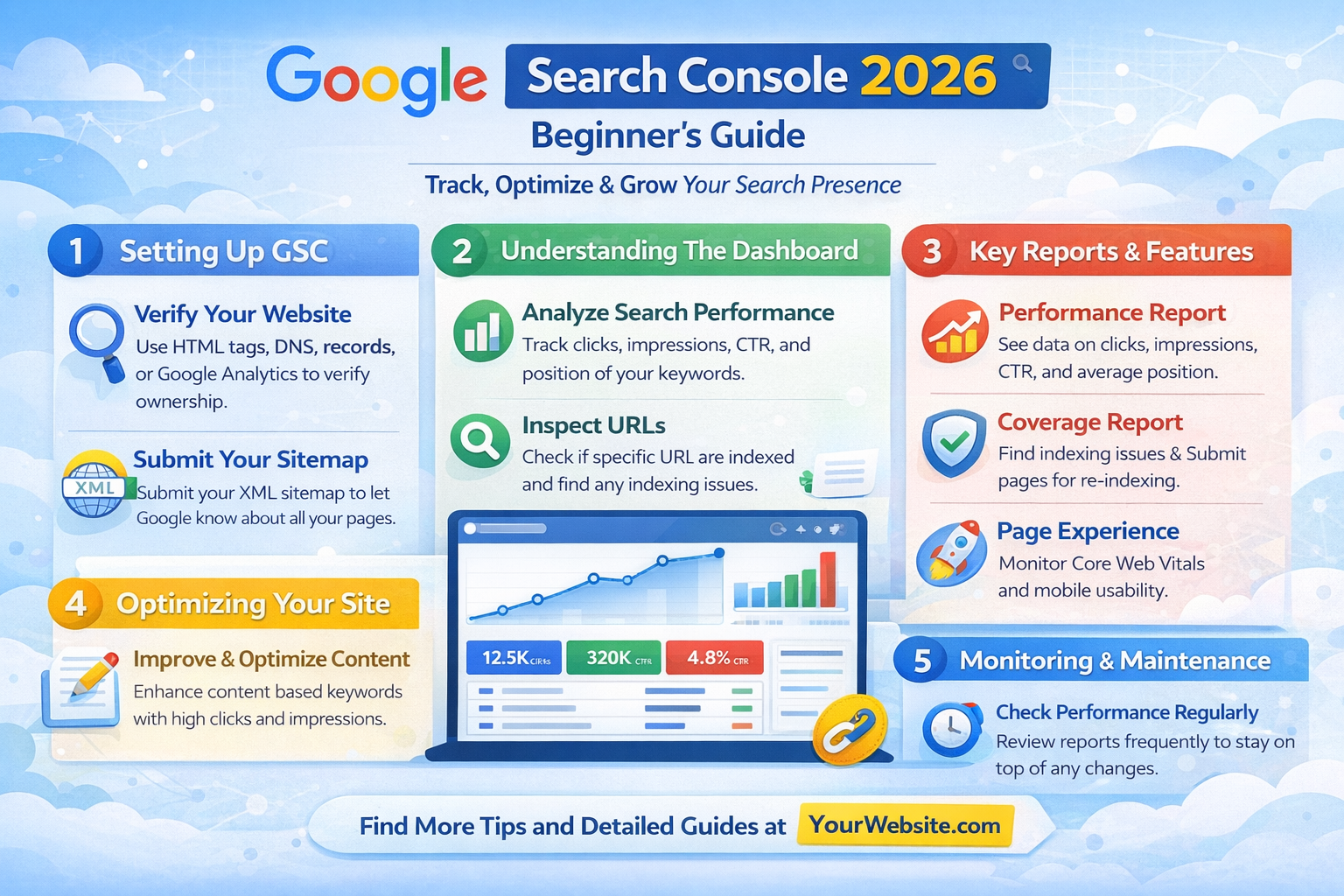
Structured visual layout presenting key interface sections and reporting categories.
How Google Search Console Works
Search Console works by connecting your website to Google’s indexing and search reporting systems.
Once verified, it can show:
-
what Googlebot crawls on your site
-
which pages are eligible to appear in search
-
search queries and page impressions
-
usability and experience signals (depending on site type)
It does not automatically improve rankings, but it can help you make better SEO decisions by showing what is working and what may need attention.
Setting Up Google Search Console (Step-by-Step)
To start using Search Console, you need to add your website as a “property” and verify ownership.
Step 1: Add a Property
Google provides two main property types:
Domain Property
-
tracks all subdomains and protocols
-
includes http, https, www, non-www
-
requires DNS verification
-
recommended for most businesses
URL Prefix Property
-
tracks only the exact URL entered
-
easier verification options
-
useful for smaller or test properties
For most beginners, Domain Property is recommended if you have access to DNS settings.
Step 2: Verify Website Ownership
Verification confirms you control the website. Common methods include:
-
DNS verification (recommended for Domain property)
-
HTML file upload
-
HTML meta tag
-
Google Tag Manager
-
Google Analytics verification (depending on setup)
Once verified, Google will begin collecting data. Some reports may take a few days to populate.
Understanding the Google Search Console Dashboard
After setup, you will see a dashboard with key reports. Beginners should focus on these first:
-
Performance (search traffic data)
-
Indexing / Pages (index coverage status)
-
Sitemaps (submission + crawling confirmation)
-
Experience / Enhancements (if applicable)
-
Manual Actions (penalties or compliance issues)
-
Security Issues (hacked site warnings)
Think of the dashboard as an SEO health and visibility monitor rather than a ranking “control panel.”
Performance Report Explained (Clicks, Impressions, CTR, Position)
The Performance report is one of the most useful parts of GSC. It shows how your site performs in Google Search results.
Key metrics include:
Clicks
The number of times users clicked your site from Google Search.
Impressions
How often your pages appeared in search results.
CTR (Click-Through Rate)
Clicks divided by impressions. A low CTR may suggest your title or meta description needs improvement.
Average Position
A general estimate of where your site ranks across queries. This number is best used for trend monitoring rather than exact ranking accuracy.
How to Find Keyword Opportunities
A common beginner strategy is to look for keywords with:
-
high impressions
-
low CTR
-
average position between 8–20
These keywords may represent “near-page-one” opportunities where improving content quality, headings, or snippet formatting could help visibility.
How to Compare Dates for SEO Tracking
Search Console allows you to compare time periods, which helps you evaluate:
-
content updates
-
technical fixes
-
seasonal traffic patterns
-
algorithm-related fluctuations
Comparing 28 days vs previous 28 days is often a practical baseline for monitoring progress.
Indexing Report Explained (Pages, Crawling, Index Status)
The Indexing report shows which pages are indexed and which are excluded.
Common indexing statuses include:
-
Indexed (page is in Google’s index)
-
Not indexed (Google chose not to index it)
-
Excluded (blocked or intentionally not indexed)
-
Error (technical issues affecting indexing)
Indexing does not guarantee ranking, but it is a requirement for visibility in search results.
Common Indexing Issues Beginners See
Some common reasons pages may not be indexed include:
-
“Crawled – currently not indexed”
-
“Discovered – currently not indexed”
-
“Duplicate without user-selected canonical”
-
“Blocked by robots.txt”
-
“Alternate page with proper canonical tag”
-
“Soft 404”
-
“Redirect error”
These messages are not always “bad,” but they often indicate areas worth reviewing.
When “Discovered” or “Crawled” Doesn’t Mean Indexed
In many cases, Google can crawl your page but still decide not to index it. This can happen if the page is considered low-value, too similar to other pages, or lacking internal links.
Improving uniqueness, clarity, and internal linking may help in some cases, but outcomes vary depending on site quality and search competition.
How to Use the URL Inspection Tool
The URL Inspection Tool allows you to check a specific page and see what Google knows about it.
You can use it to:
-
confirm if a page is indexed
-
see the last crawl date
-
check canonical selection
-
identify crawling errors
-
request indexing (if eligible)
Request indexing is useful after publishing new content or fixing technical issues, but it does not guarantee immediate indexing.
How to Submit a Sitemap in Search Console
A sitemap helps Google discover important pages more efficiently.
Steps to submit a sitemap:
-
Go to Sitemaps in Search Console
-
Enter the sitemap URL (example: /sitemap.xml)
-
Click Submit
-
Monitor sitemap status and errors
If your sitemap is valid, Search Console will show whether Google successfully fetched it.
Submitting a sitemap is considered a best practice, especially for new websites or sites with many pages.
Enhancements Reports (Core Web Vitals, Mobile Usability, Rich Results)
Depending on your site, Search Console may show “Enhancements” such as:
Core Web Vitals
Provides performance signals based on user experience metrics. It may highlight pages with loading or stability issues.
Mobile Usability
Helps identify layout and usability problems on mobile devices, which can impact user experience.
Rich Results
Shows structured data eligibility (such as FAQ markup, product schema, or breadcrumbs). If errors exist, fixing them may improve rich snippet eligibility, depending on Google’s display rules.
These reports are most useful as diagnostic indicators rather than ranking predictors.
Manual Actions and Security Issues (What to Do If You See Warnings)
Manual Actions occur when Google applies a penalty due to violations of its spam policies. Security Issues may appear if your website is compromised.
If you see warnings:
-
review Google’s explanation inside Search Console
-
remove harmful content or spam pages
-
fix security vulnerabilities
-
request a review once resolved
It is generally recommended to address these issues quickly, as they can significantly impact visibility.
How to Use Search Console for Content Strategy
Search Console is not just a technical tool—it can also guide content planning.
Common content strategy uses include:
-
identifying blog topics based on rising impressions
-
improving older posts that rank on page 2
-
finding pages with high impressions but low clicks
-
identifying “content cannibalization” (multiple pages competing for similar queries)
A practical approach is to update content based on real query data rather than guessing what users search for.
How to Use Search Console for Technical SEO Checks
Technical SEO improvements are often easier when you have visibility into Google’s indexing signals.
Search Console can help you detect:
-
crawl errors
-
redirect problems
-
canonical misconfigurations
-
blocked pages
-
missing internal linking patterns
-
sudden drops in indexed pages
Even beginners can use these reports to start conversations with developers or hosting providers.
Common Beginner Mistakes in Google Search Console
Many users misinterpret Search Console reports. Common mistakes include:
-
assuming average position is exact ranking
-
panicking over every “excluded” URL
-
submitting the same sitemap repeatedly
-
requesting indexing too often
-
ignoring internal linking issues
-
treating Core Web Vitals as the only SEO priority
-
expecting instant traffic increases after setup
Search Console is best used as a long-term monitoring tool rather than a short-term results dashboard.
Best Practices for Using Google Search Console in 2026
If you want a stable workflow, these habits are commonly recommended:
-
check Performance trends weekly or monthly
-
submit sitemaps after major site changes
-
monitor indexing issues after publishing new content
-
review queries that trigger impressions but not clicks
-
use URL Inspection after major content updates
-
monitor manual actions and security warnings regularly
-
combine Search Console insights with analytics platforms for deeper decision-making
In many SEO workflows, Search Console is used alongside tools like GA4, tag managers, and website crawlers.
FAQ
1. Is Google Search Console free?
Yes. Google Search Console is generally available as a free tool for website owners and marketers.
2. How long does it take for Search Console data to appear?
In many cases, it may take a few days for initial performance and indexing reports to populate after verification.
3. Does submitting a sitemap guarantee indexing?
No. Submitting a sitemap helps discovery, but indexing decisions depend on many factors including content quality and site structure.
4. Can Search Console show all keywords my website ranks for?
Not always. It provides many query insights, but some queries may be omitted or grouped for privacy and reporting reasons.
5. What should I check first in Search Console as a beginner?
A practical starting point is the Performance report and Indexing report, since these directly affect search visibility and website discoverability.
Practical Checklist
Google Search Console Beginner Checklist (2026)
✅ Verify your site using Domain property if possible
✅ Submit your sitemap (sitemap.xml)
✅ Review the Performance report (queries + pages)
✅ Identify top pages by clicks and impressions
✅ Check Indexing report for excluded/error pages
✅ Use URL Inspection for newly published pages
✅ Fix robots.txt or canonical issues if needed
✅ Monitor Core Web Vitals and mobile usability reports
✅ Review security issues and manual actions monthly
✅ Use GSC insights to guide content updates
Trusted Sources / Standards
For best practices and official documentation, refer to:
-
Google Search Central documentation
-
Google Search Console Help Center
-
Google Search Spam Policies (Search Central)
-
Google Page Experience / Core Web Vitals guidance
-
FTC-style truth-in-advertising principles (for ethical marketing context)
-
Data privacy frameworks (GDPR-style and CCPA-style transparency principles)
Disclaimer
This content is provided for general educational purposes only. Digital marketing results vary depending on market conditions, platform rules, audience behavior, competition, and execution. This guide does not constitute legal or professional technical advice.
Summary
Google Search Console is a free Google tool that helps website owners monitor search performance, indexing status, and technical SEO issues. In 2026, it remains useful for tracking clicks, impressions, keyword visibility, and page indexing errors. Beginners can start by verifying their site, submitting a sitemap, reviewing performance trends, and using URL Inspection to troubleshoot indexing concerns.